Gitlab Server
Install GitLab
On the GitLab Server we have created, proceed to install the necessary dependencies.
sudo apt-get update
sudo apt-get install -y curl openssh-server ca-certificates tzdata perl
Add the GitLab package repository and install the package.
curl https://packages.gitlab.com/install/repositories/gitlab/gitlab-ee/script.deb.sh | sudo bash
Here we are installing GitLab Self-hosted, which means setting up and running GitLab on your own server instead of using GitLab’s hosted service. This allows you full control over the GitLab environment, including where it’s hosted, how it’s configured, and who has access to it.
Next, install the GitLab package. Use the DNS you want to access the GitLab server.
sudo EXTERNAL_URL="http://gitlab.tranvix.vn" apt-get install gitlab-ee
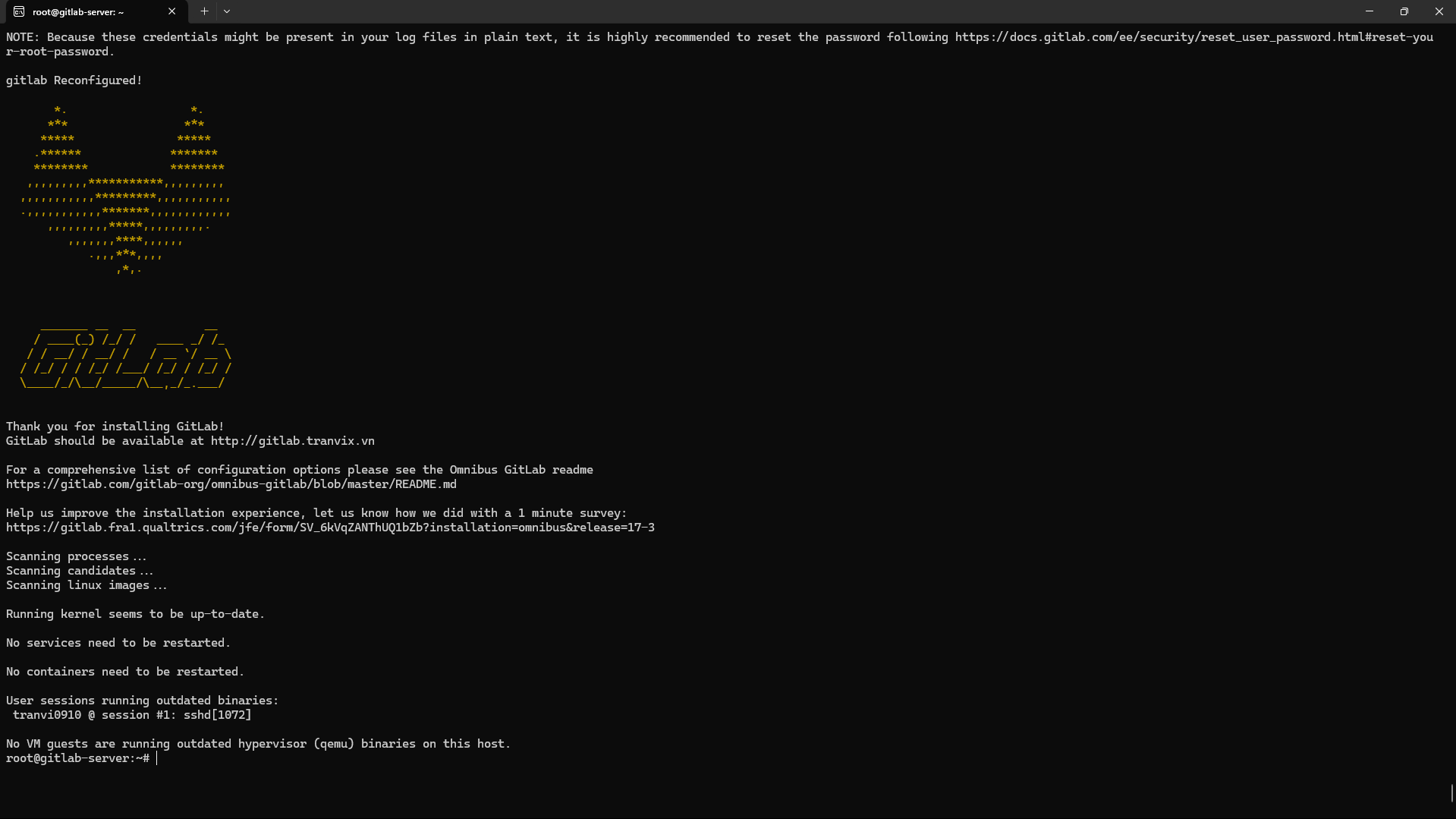
GitLab has been successfully installed.
Configure GitLab
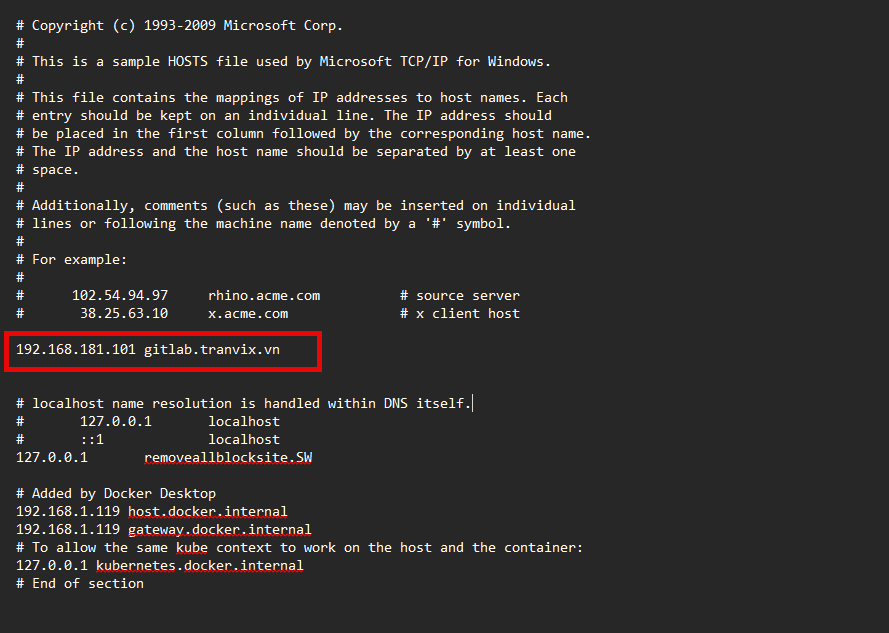
Add a host on Windows.
Open Notepad as an administrator.
Open the hosts file located at C:\Windows\System32\drivers\etc
At the end of the hosts file, add a new line in the following format:
<IP address> <domain name>
We will add the IP address of the GitLab Server VM and the domain we are using to access GitLab.
192.168.181.101 gitlab.tranvix.vn
Now, access GitLab through the domain http://gitlab.tranvix.vn.
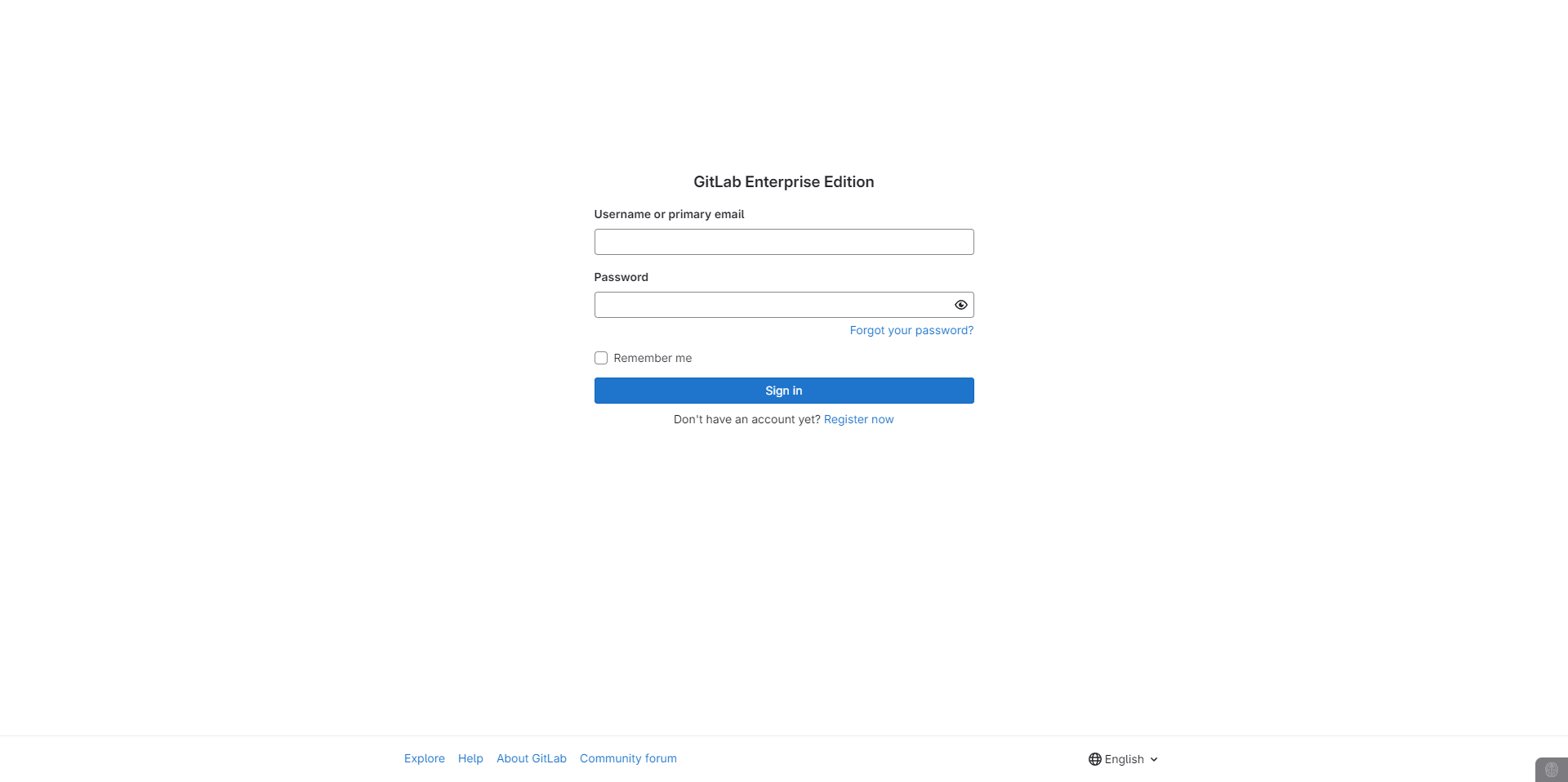
Retrieve the password by running the following command and log in with the Username root and the retrieved password:
cat /etc/gitlab/initial_root_password
root@gitlab-server:~# cat /etc/gitlab/initial_root_password
# WARNING: This value is valid only in the following conditions
#          1. If provided manually (either via `GITLAB_ROOT_PASSWORD` environment variable or via `gitlab_rails['initial_root_password']` setting in `gitlab.rb`, it was provided before database was seeded for the first time (usually, the first reconfigure run).
#          2. Password hasn't been changed manually, either via UI or via command line.
#
#          If the password shown here doesn't work, you must reset the admin password following https://docs.gitlab.com/ee/security/reset_user_password.html#reset-your-root-password.

Password: frA2Y0Aquj3AS3hLvKowNvUkMyfHD6mU4IdhDnOaSGU=

# NOTE: This file will be automatically deleted in the first reconfigure run after 24 hours.
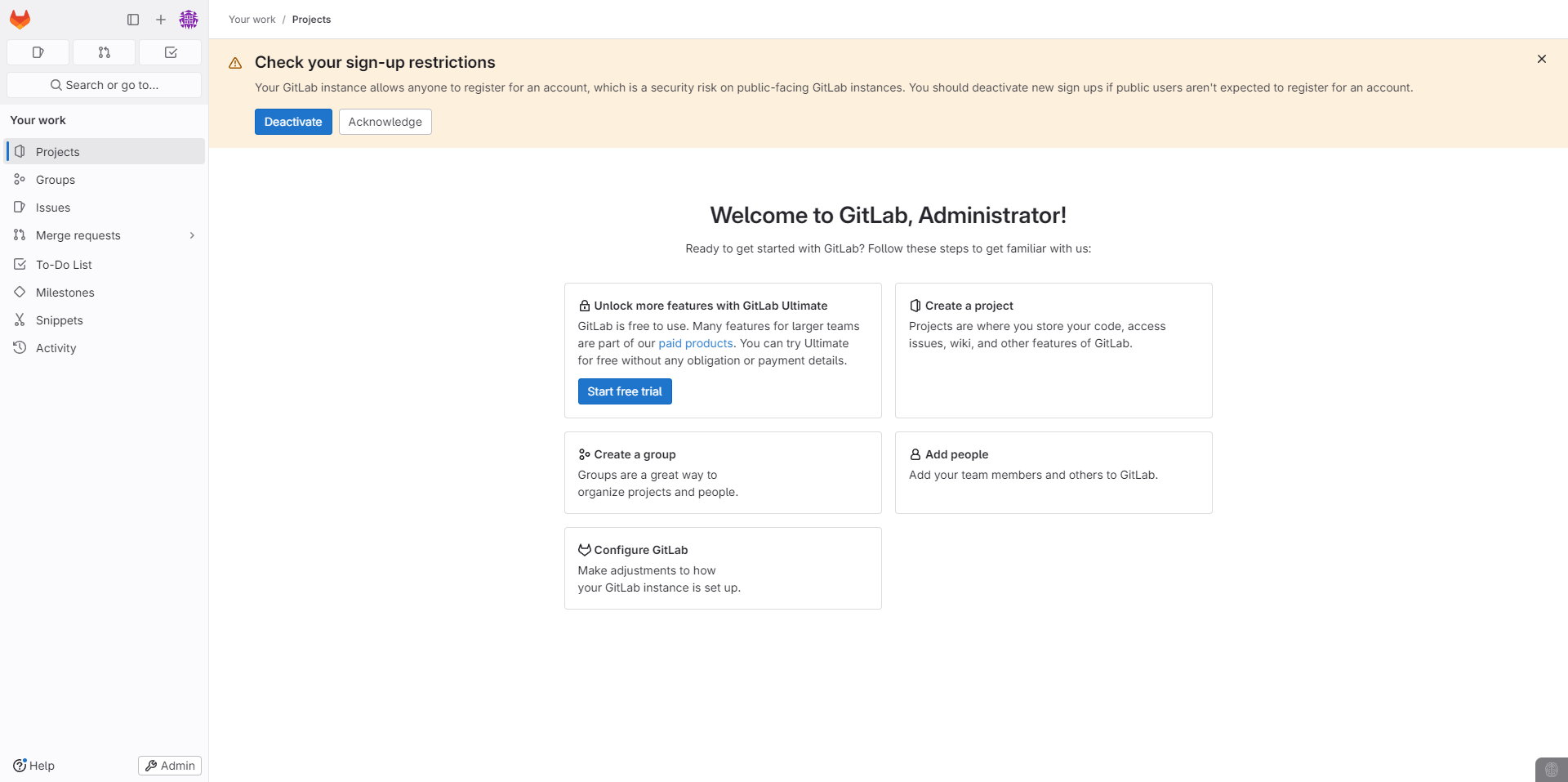 Successfully logged in.
Creating a Group, User, and Project.
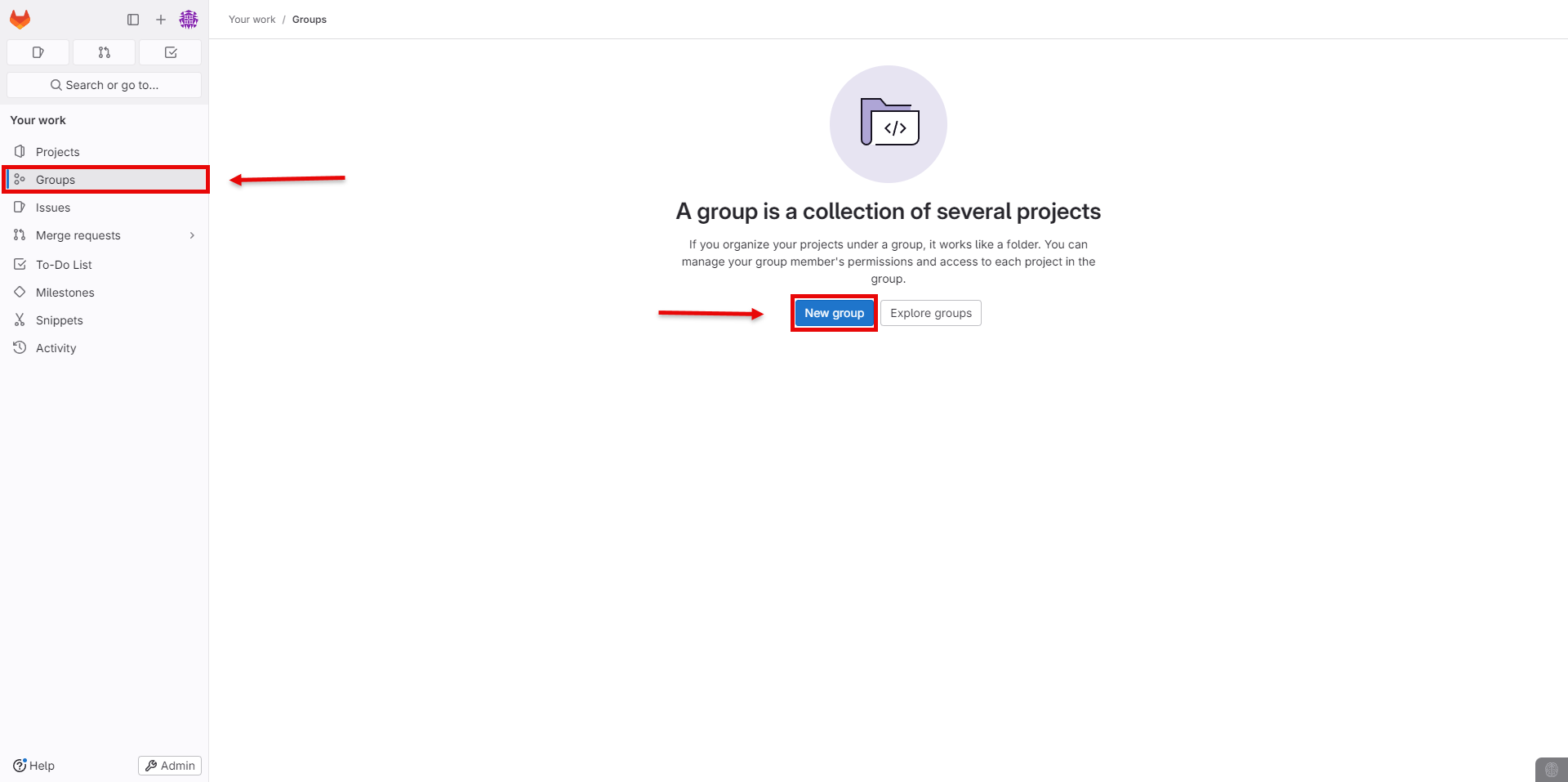
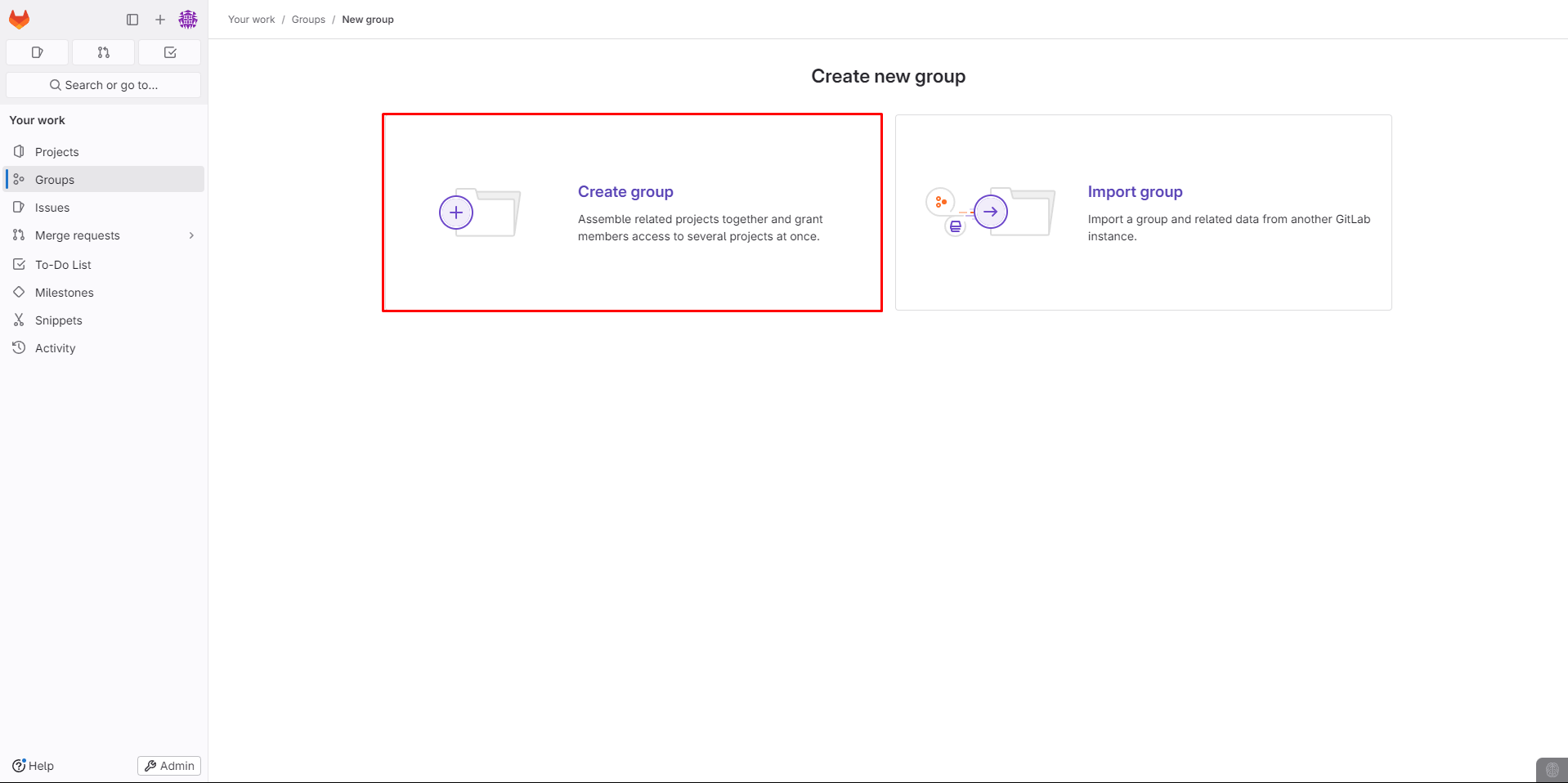
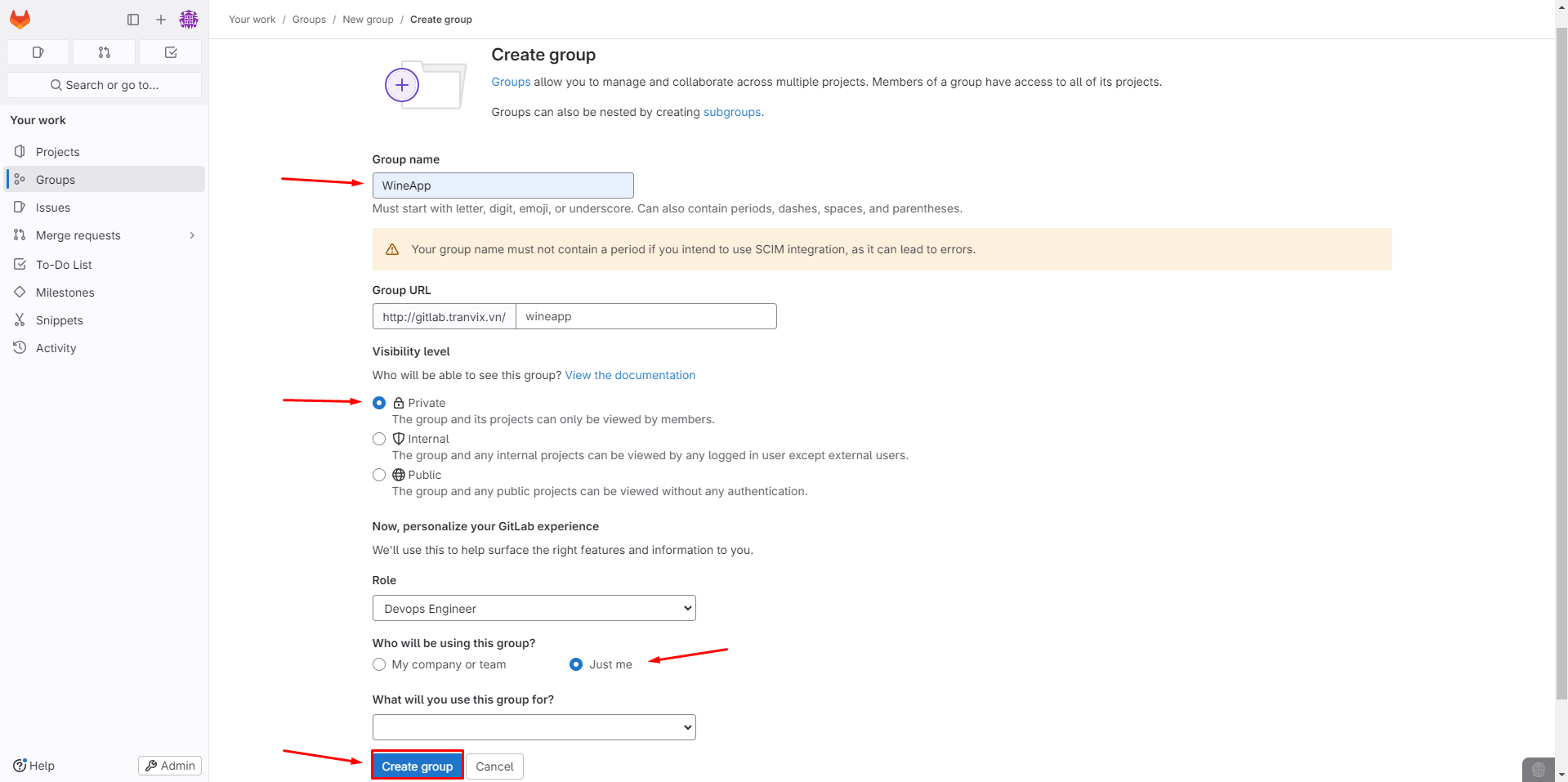
First, create a Group to house the project.
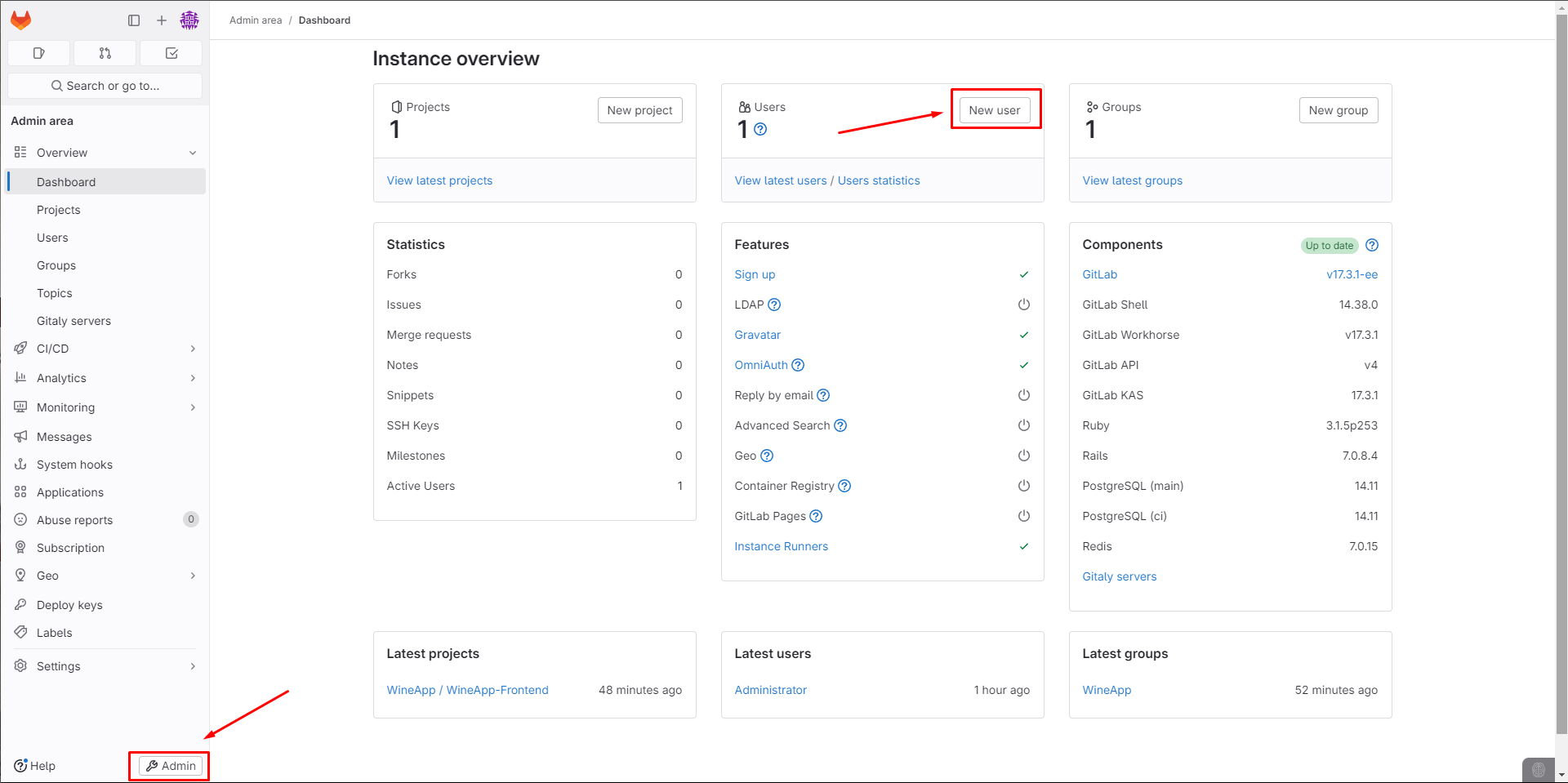
 Next, create a User and add the User to the Group.
Go to Admin and select New User.
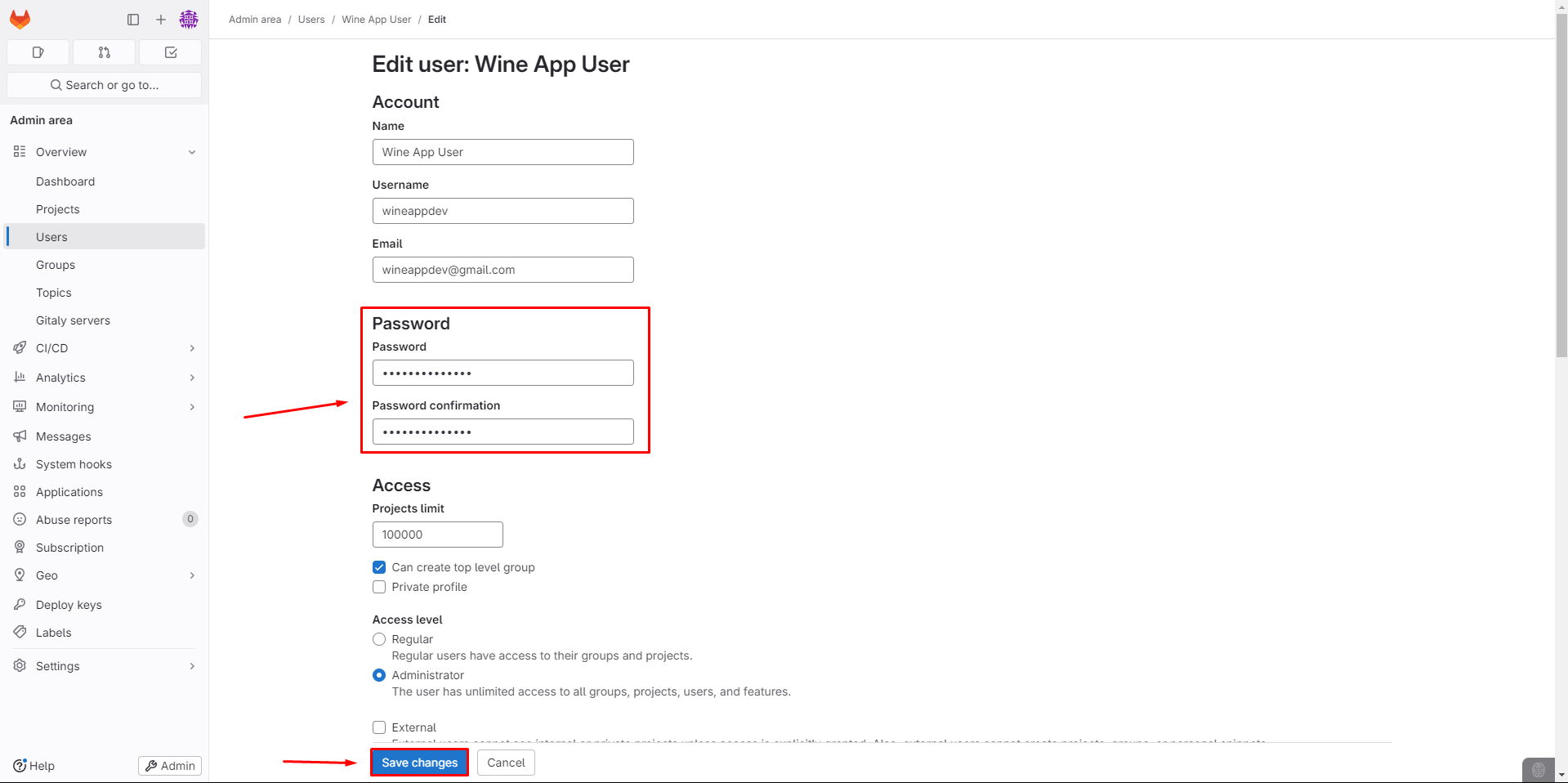
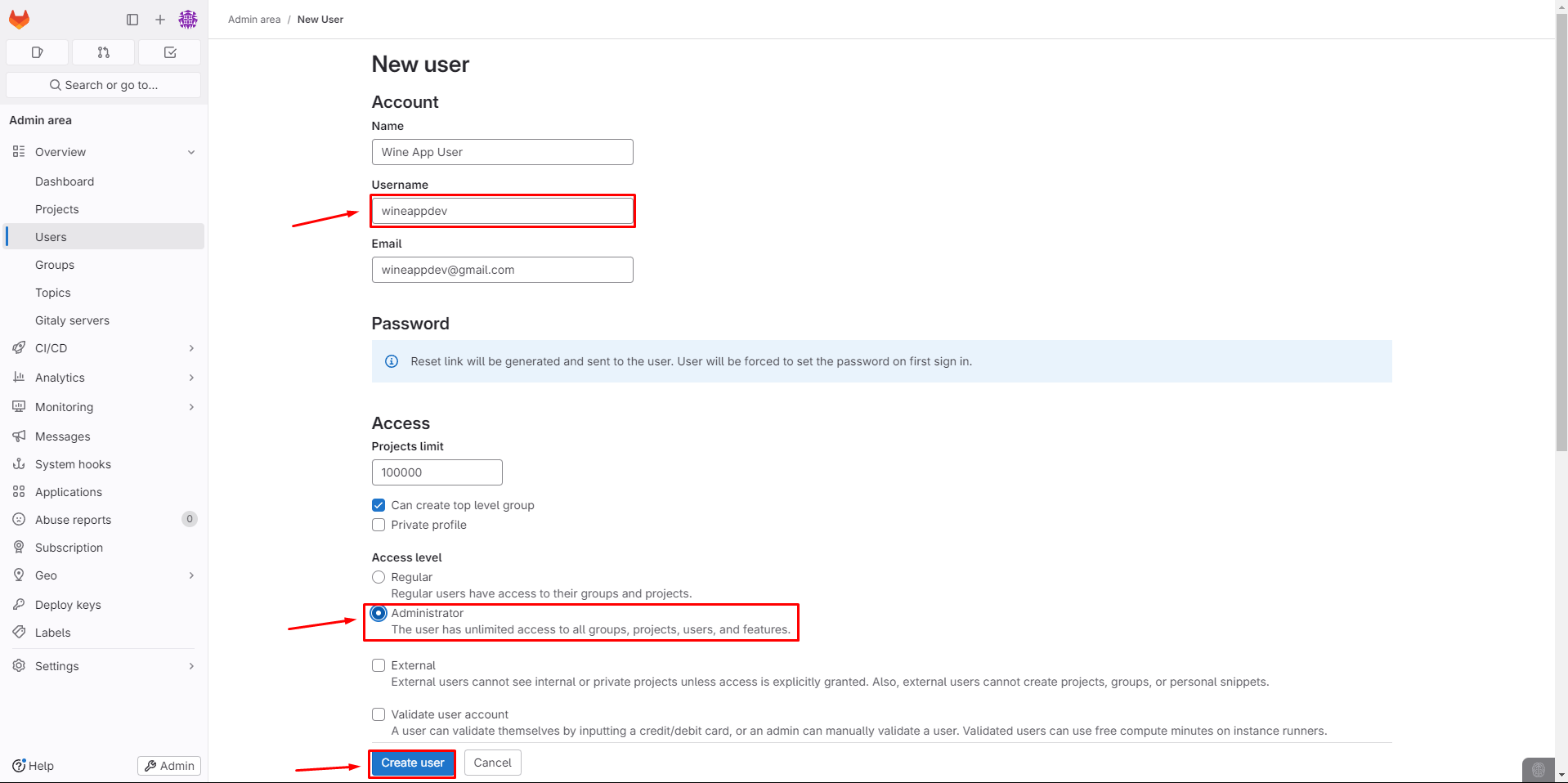 After successfully creating the User, set a password.
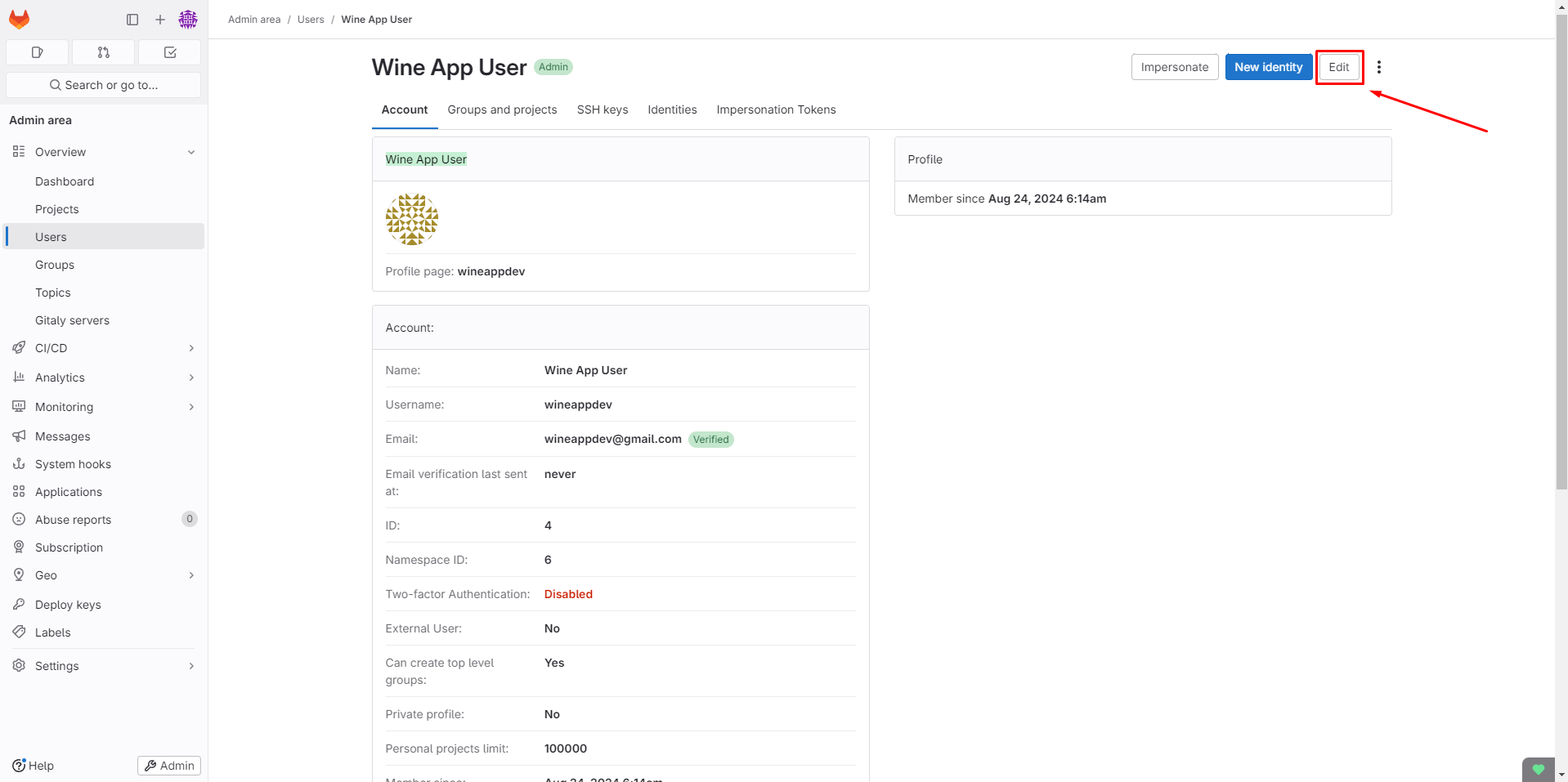
 Add the User to the Group.
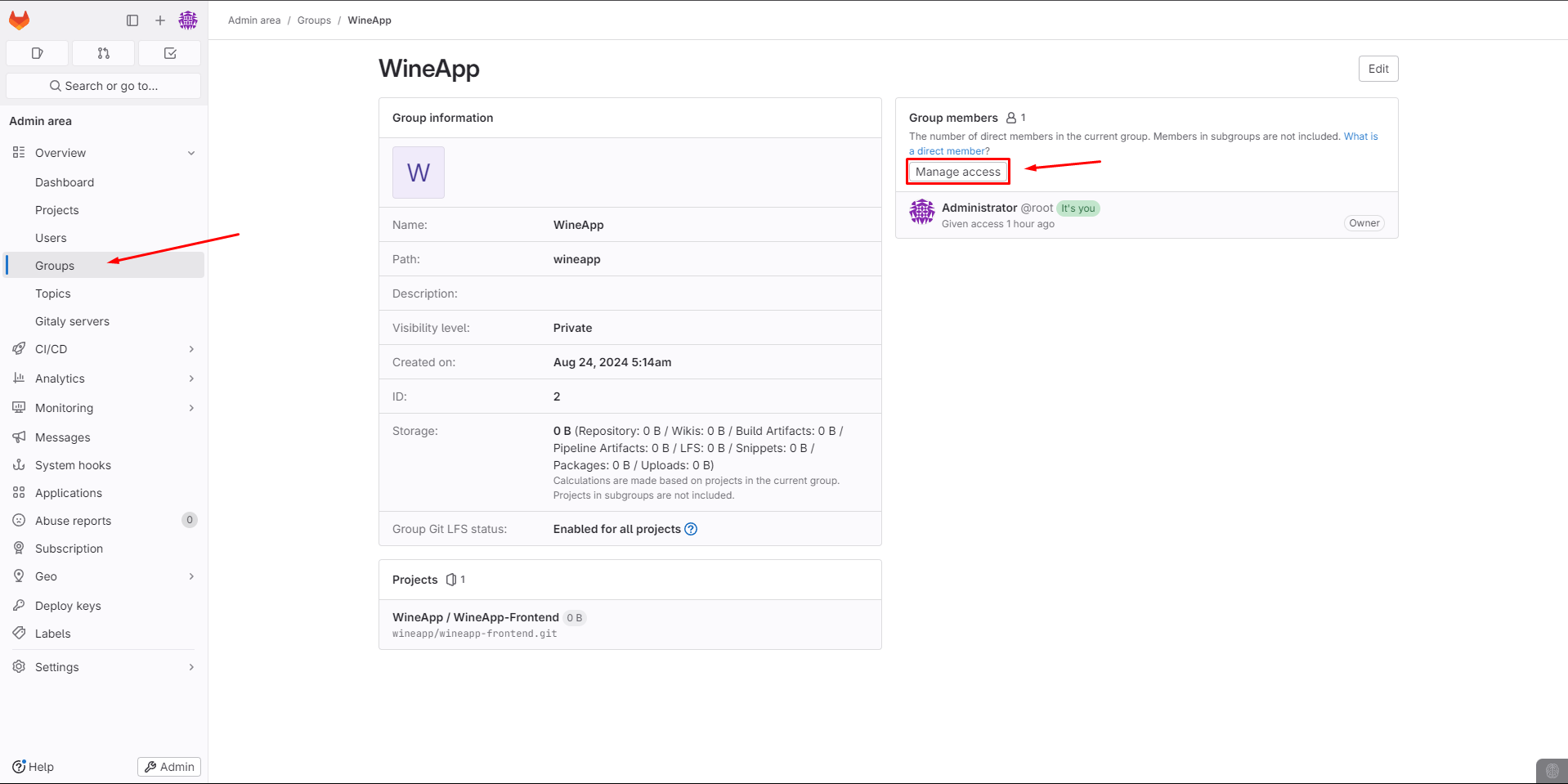
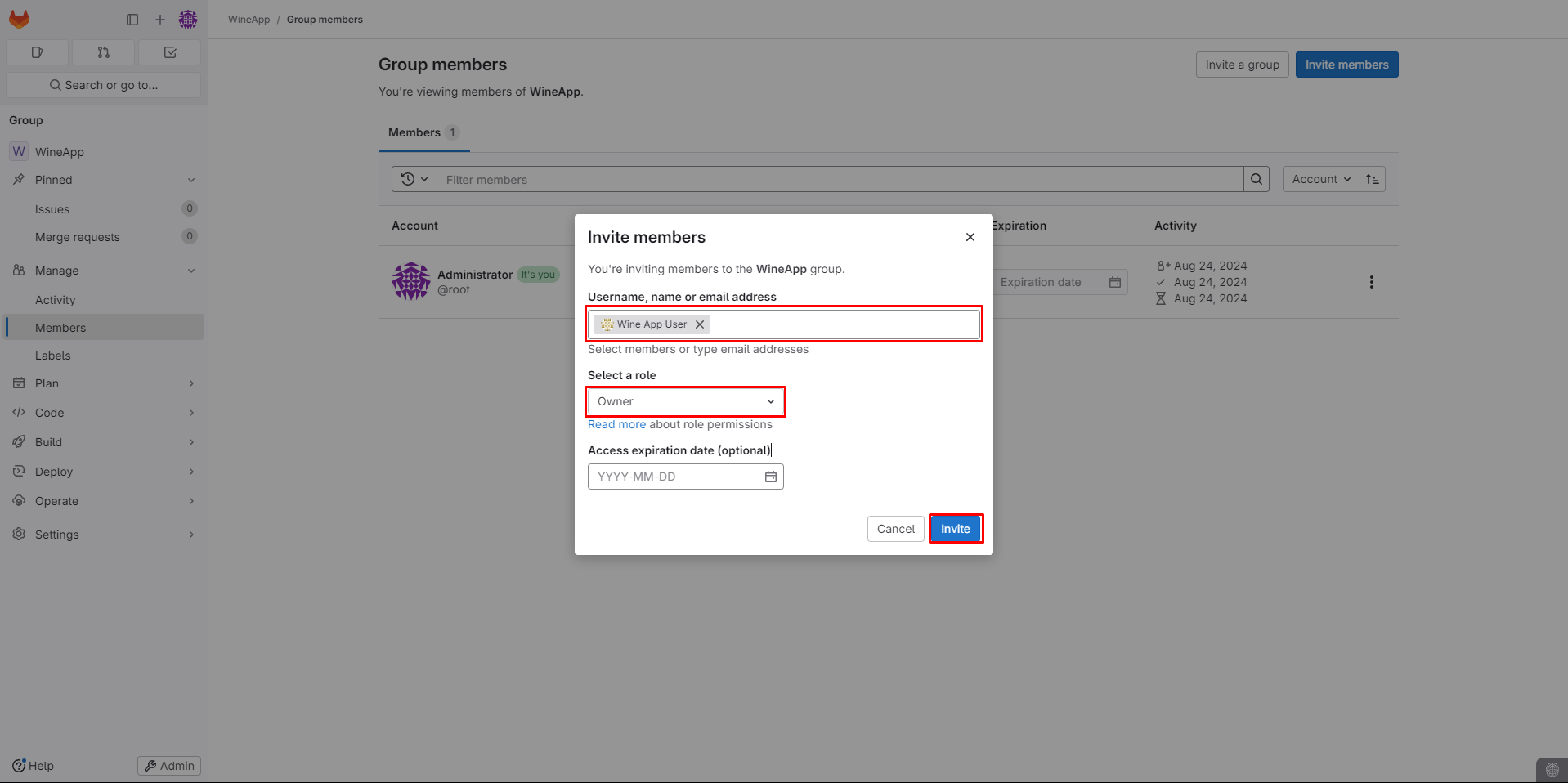
Access the Group and create a Project.
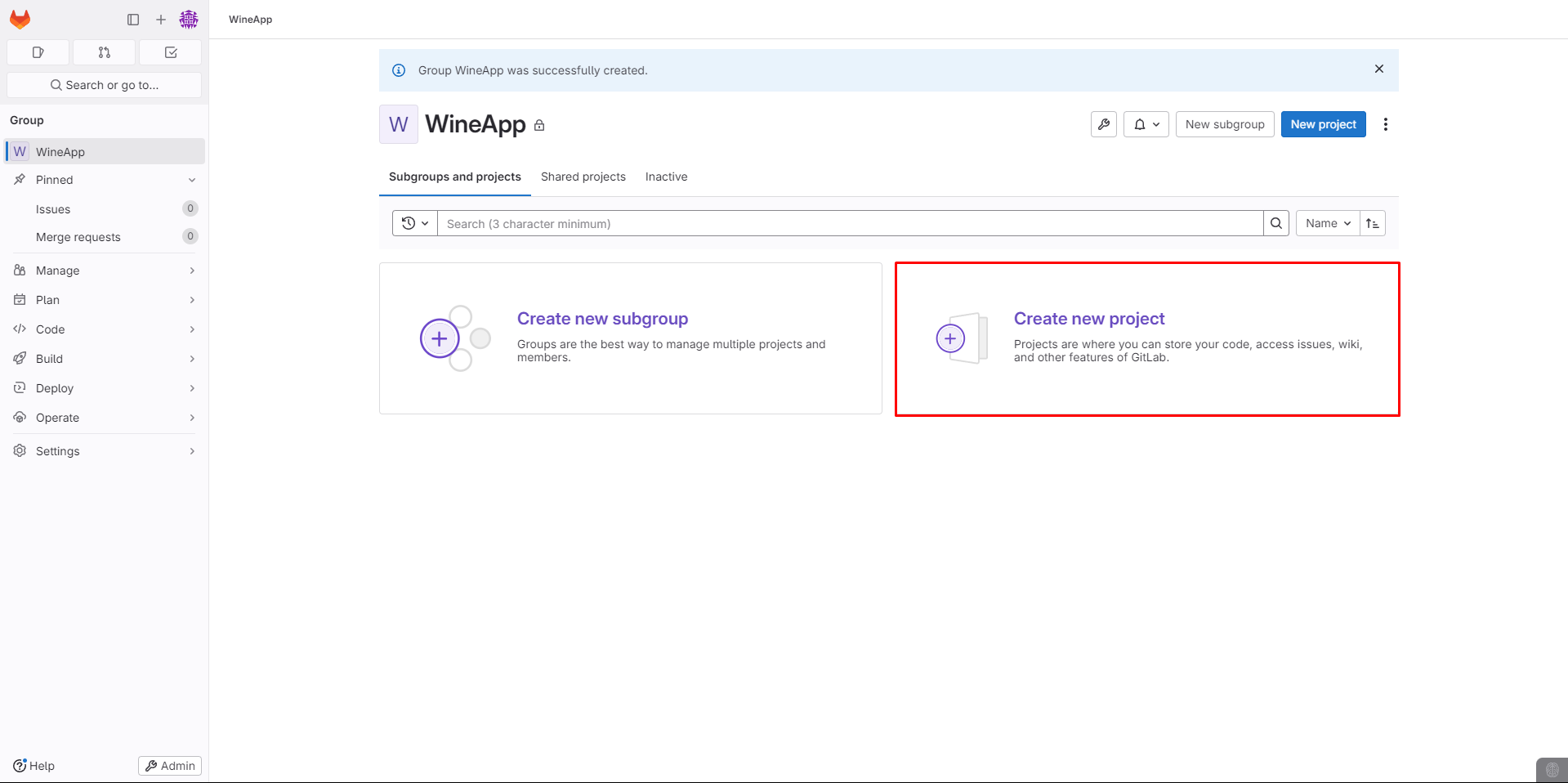 Select Create blank project.
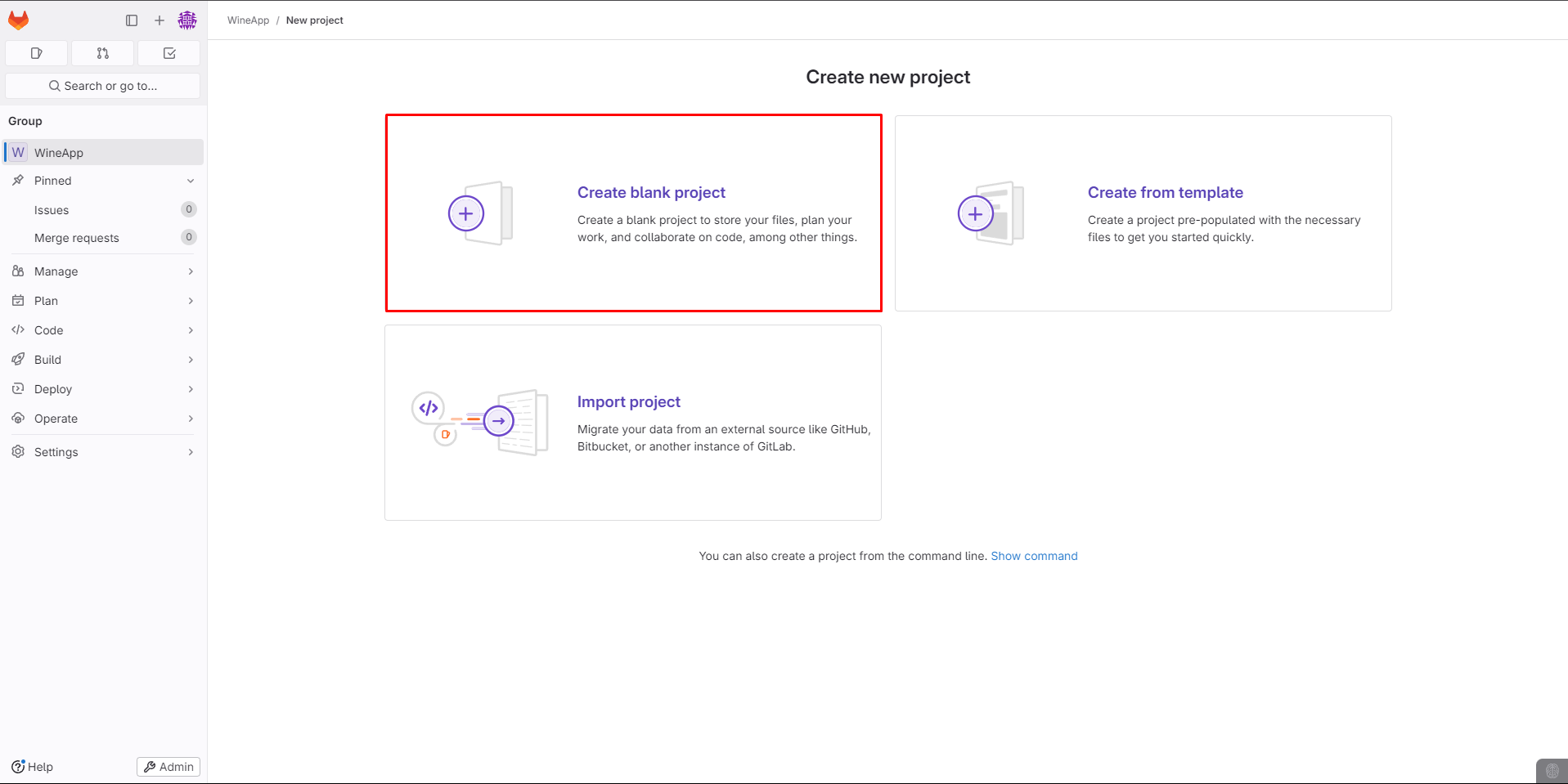 Name the Project and make sure to uncheck Initialize repository with a README if you plan to push an existing repository or create files manually later.
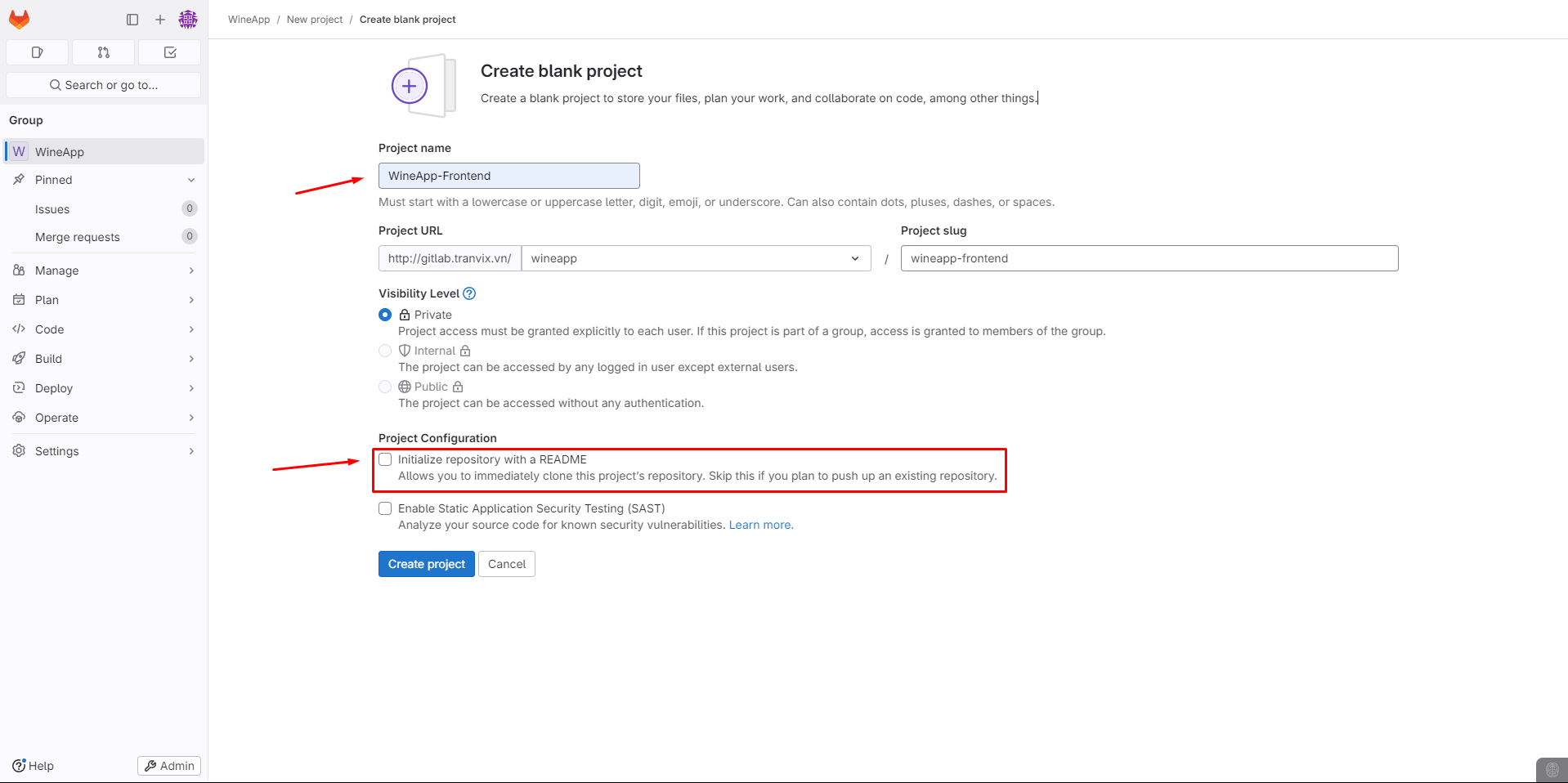 Project successfully created.
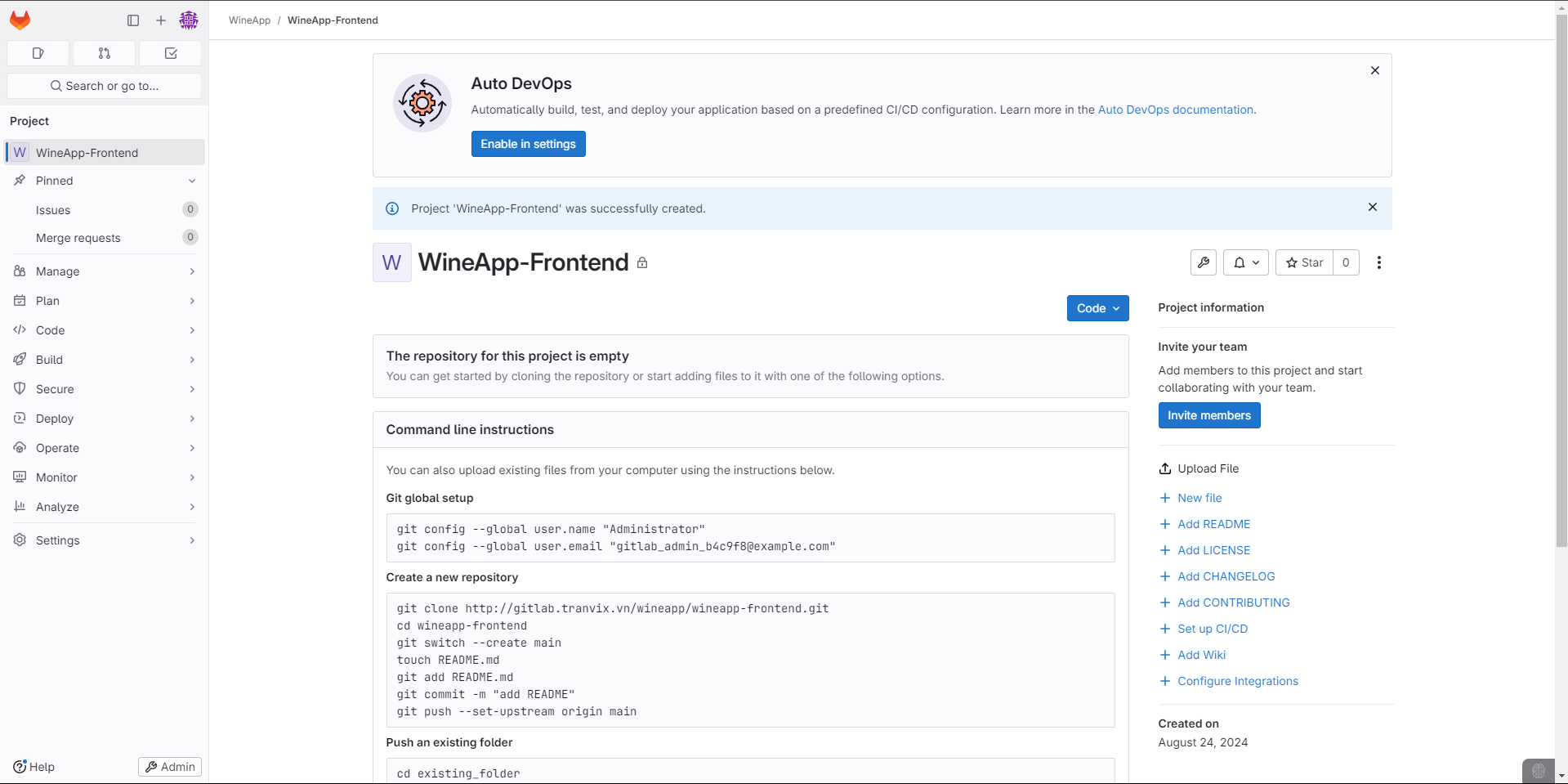 Follow the on-screen instructions to push an existing project to GitLab.
Download the project from the links below and move it to the Server Development to push the code to GitLab.
In the folder where the project is stored on your Windows machine, right-click and open Terminal. Run the following command:
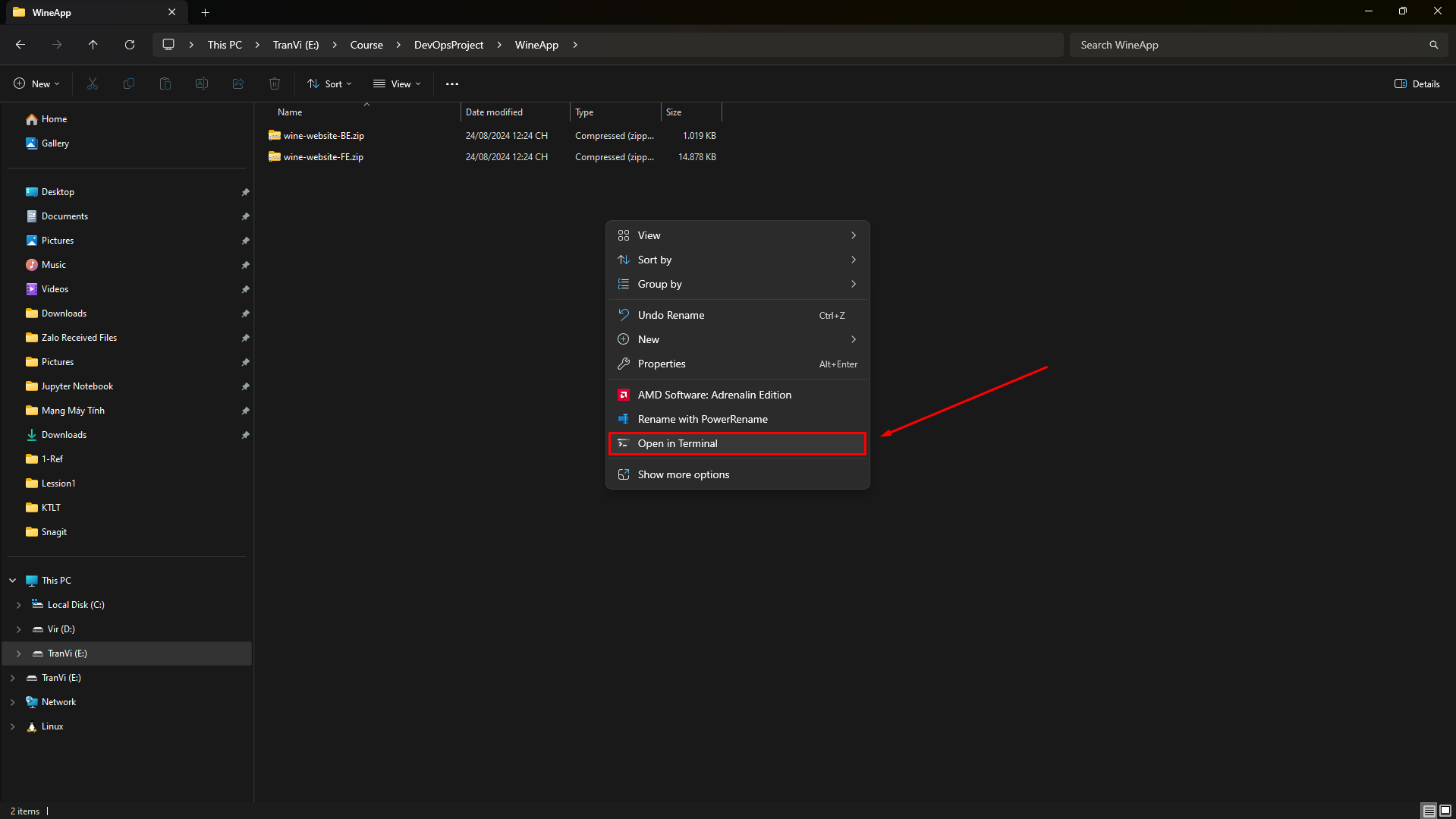
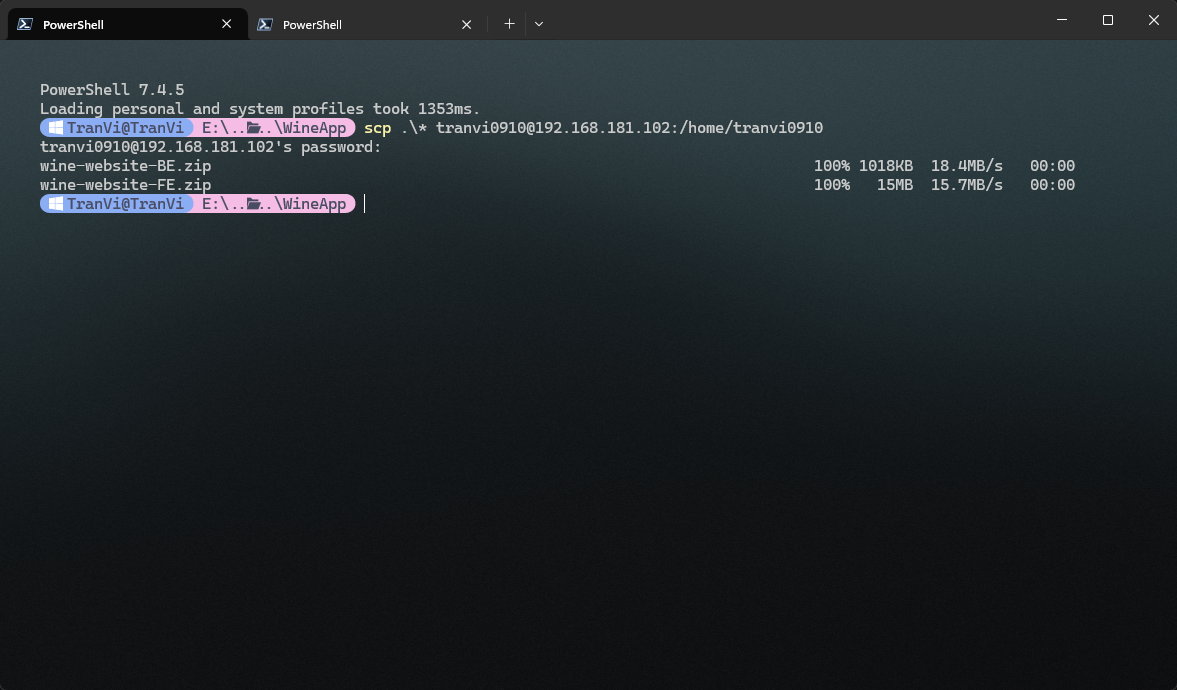
scp .\* tranvi0910@192.168.181.102:/home/tranvi0910
This command copies all files ./* and directories from the current folder on the local machine to the folder /home/tranvi0910 on the remote server at IP 192.168.181.102, using the tranvi0910 user account.
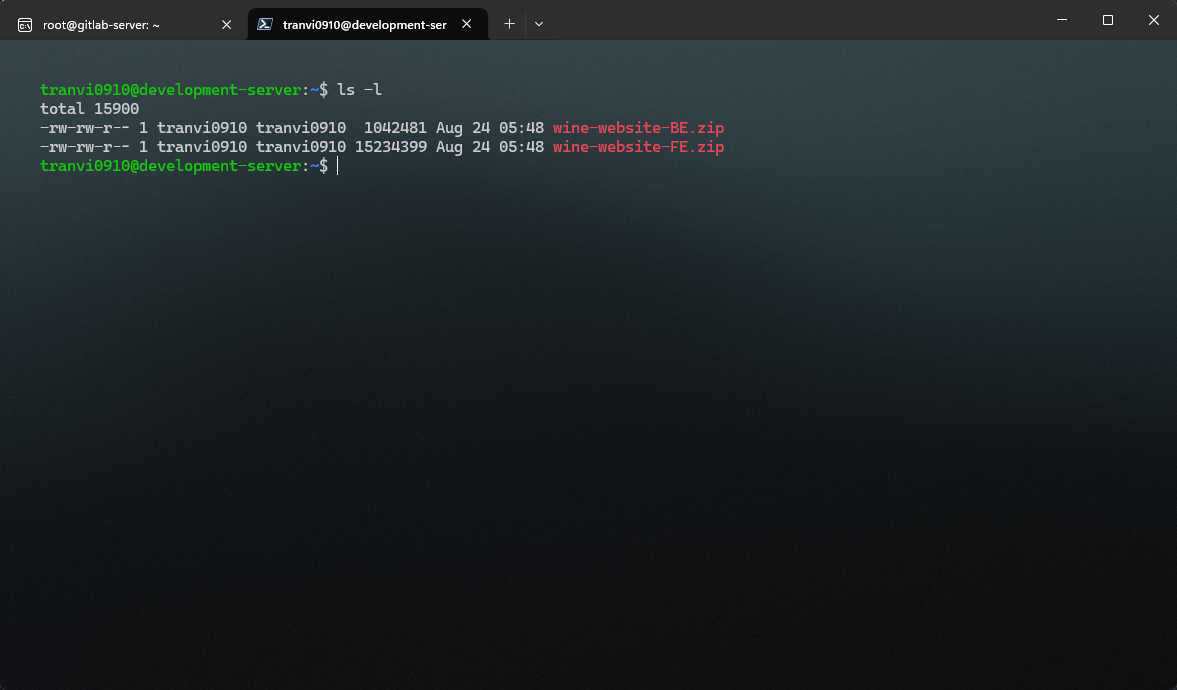
Check the files on the Server Development.
Create a new directory to clone the project, then extract the source code we transferred from Windows to the server, and push the code to GitLab.
mkdir -p /projects/wineapp && cd /projects/wineapp
Add a host on the Server Development to clone the project from GitLab.
vi /etc/hosts
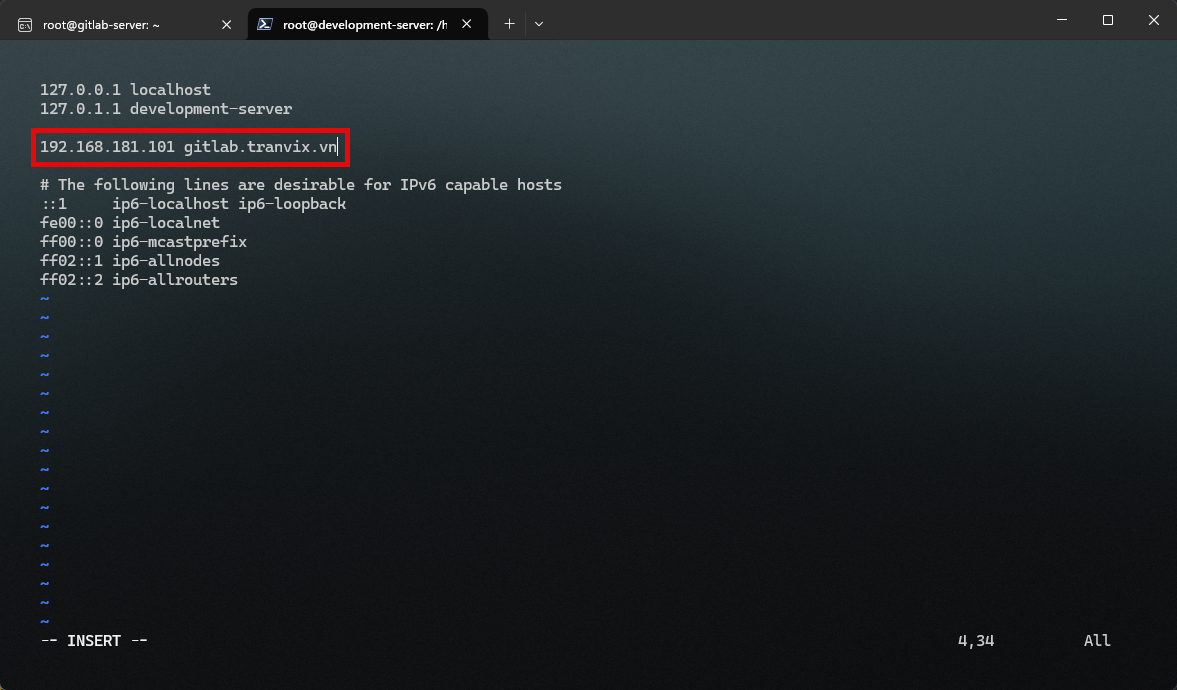
Clone the project.
git clone http://gitlab.tranvix.vn/wineapp/wineapp-frontend.git
root@development-server:/projects/wineapp# git clone http://gitlab.tranvix.vn/wineapp/wineapp-frontend.git
Cloning into 'wineapp-frontend'...
Username for 'http://gitlab.tranvix.vn': wineappdev
Password for 'http://wineappdev@gitlab.tranvix.vn':
warning: You appear to have cloned an empty repository.
Install the Unzip package.
sudo apt install unzip
Unzip the source code for the frontend.
unzip wine-website-FE.zip
unzip wine-website-BE.zip
After unzipping, you will have two folders.
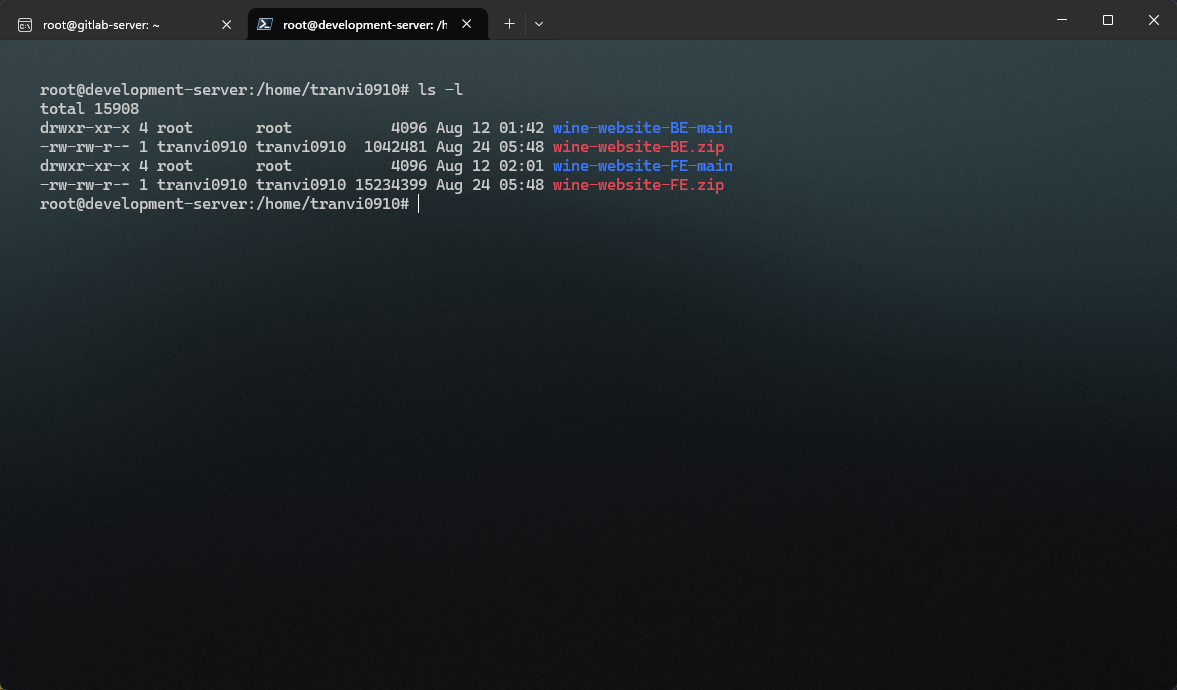
Move the source code from the unzipped folder to the Frontend project we cloned earlier.
cp -rf wine-website-FE-main/* /projects/wineapp/wineapp-frontend/
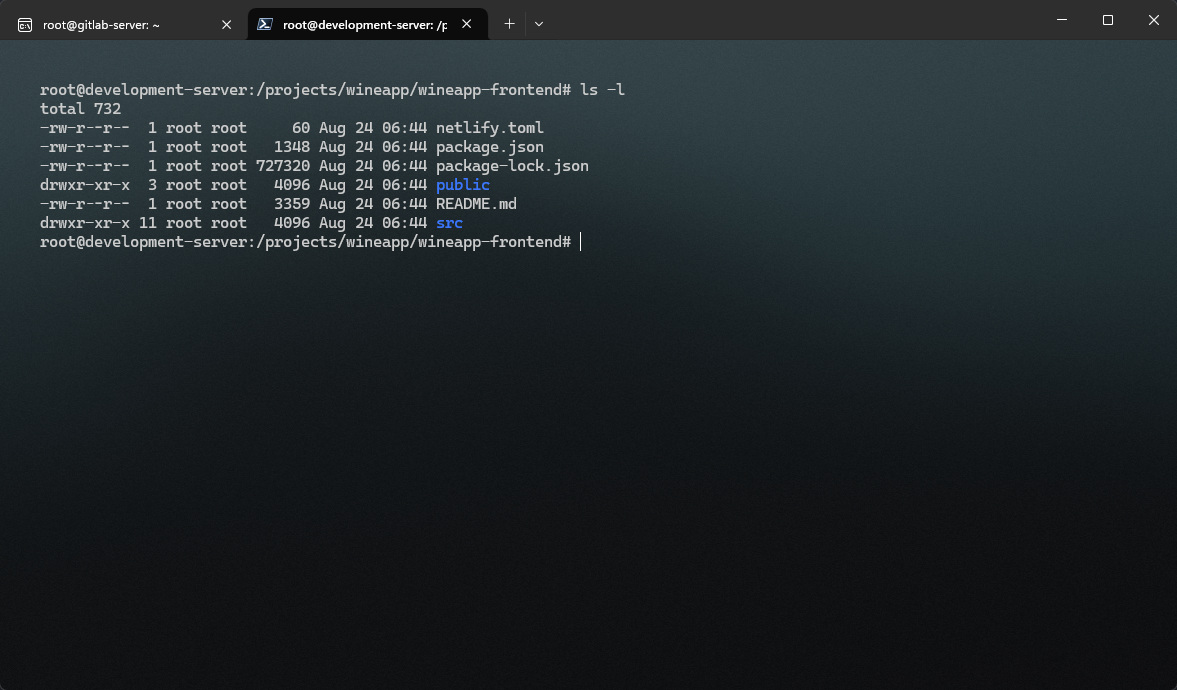
Push the code.
git add .

git commit -m 'project(base): add base project'

git push
Check the project on GitLab.
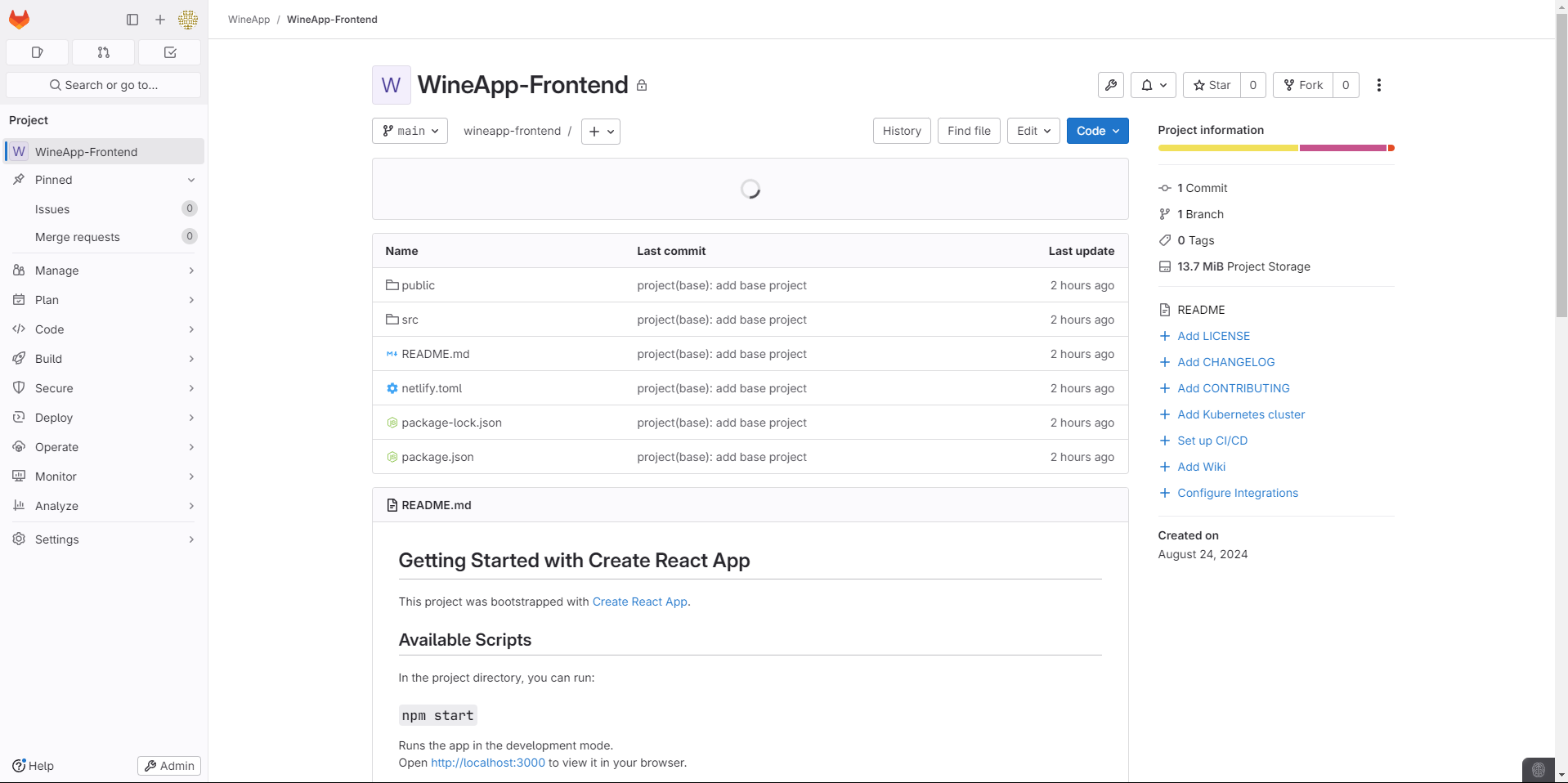
The project has been successfully pushed to GitLab. Follow similar steps for the Backend Project.