Trivy Security Scan Image
Installing Docker and Docker Compose
Create a Bash Script file to install Docker and Docker Compose.
#!/bin/bash
sudo apt install -y apt-transport-https ca-certificates curl software-properties-common
curl -fsSL https://download.docker.com/linux/ubuntu/gpg | sudo gpg --dearmor -o /usr/share/keyrings/docker-archive-keyring.gpg
echo "deb [signed-by=/usr/share/keyrings/docker-archive-keyring.gpg] https://download.docker.com/linux/ubuntu $(lsb_release -cs) stable" | sudo tee /etc/apt/sources.list.d/docker.list > /dev/null
sudo apt update -y
sudo apt install docker-ce -y
sudo systemctl start docker
sudo systemctl enable docker
sudo curl -L "https://github.com/docker/compose/releases/latest/download/docker-compose-$(uname -s)-$(uname -m)" -o /usr/local/bin/docker-compose
sudo chmod +x /usr/local/bin/docker-compose
docker -v
docker-compose -v
Run the script with the following command:
sh <name-file>.sh
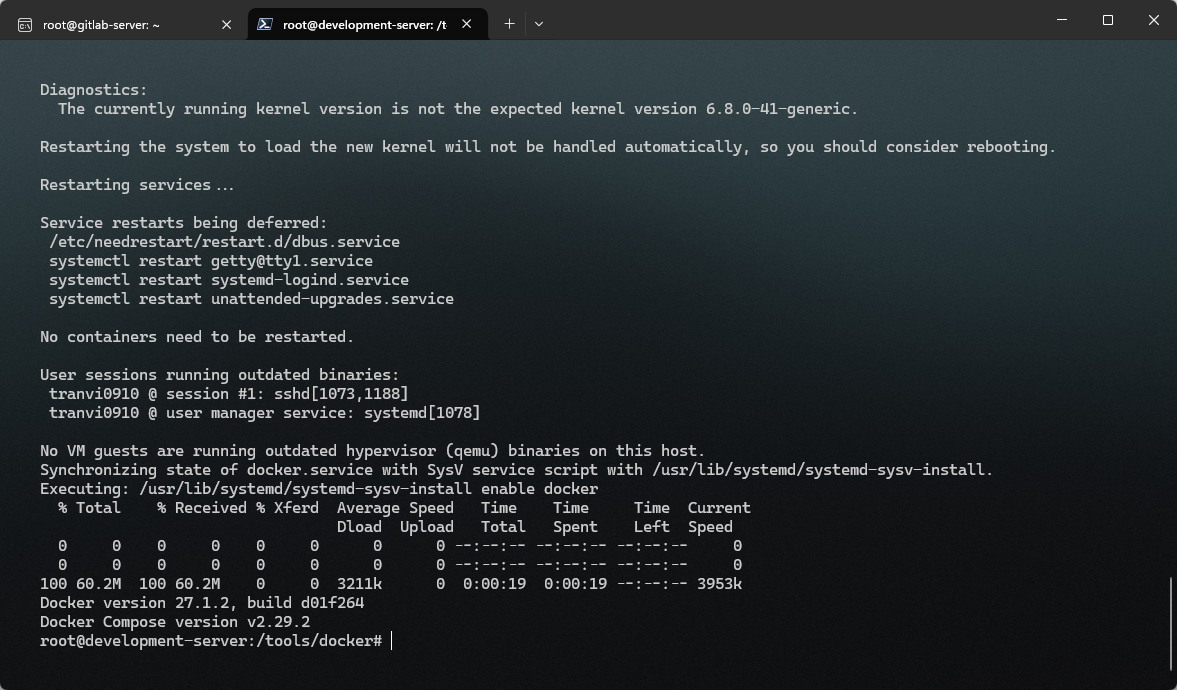
Docker and Docker Compose are successfully installed.
Installing Trivy via Docker Image
Trivy can be used in the following ways:
# Install Trivy
brew install aquasecurity/trivy/trivy

# Scan a Docker image
trivy image your-docker-image

# Scan a filesystem
trivy fs /path/to/your/filesystem

# Scan source code
trivy repo https://github.com/your/repo
In this workshop, we will install Trivy via Docker Image.
You can perform a source code scan while pulling the Trivy Image from Docker Hub:
docker run aquasec/trivy fs .
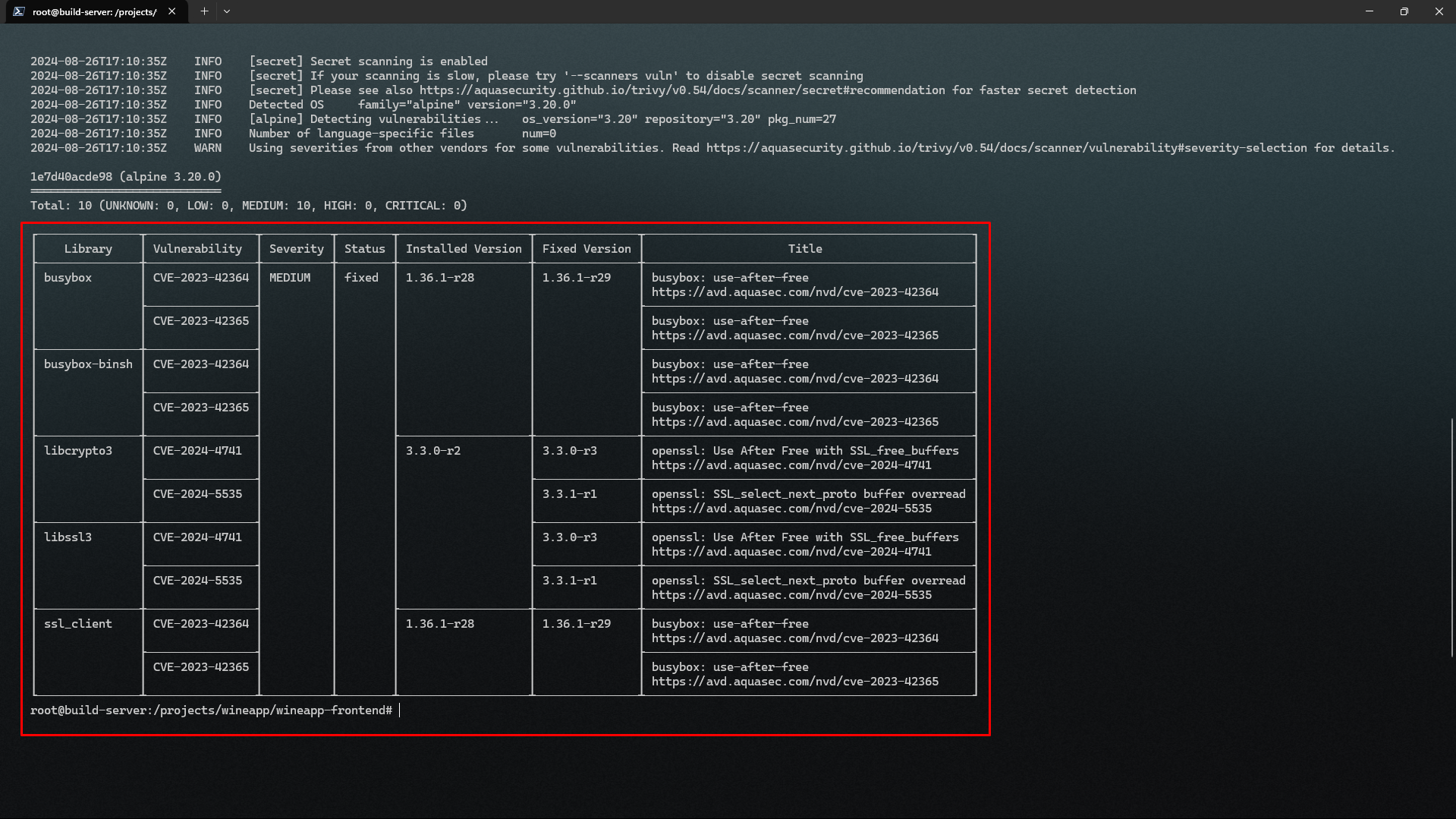
You can generate security scan reports with Trivy.
-
$ trivy image --format template --template "@contrib/html.tpl" -o report.html golang:1.12-alpine